MCP Server
Connect Claude Code, Codex, or any MCP-compatible agent to control your Vyra editor remotely. The agent can view your timeline, add media, edit properties, apply effects, and more - all while you see changes in real time in your browser.
Setup
Pick your client below. The first time you connect, your browser will open to authorize the agent with your Vyra account.
Works on both claude.ai and the Claude Desktop app:
- Click your profile icon → Settings → Connectors
- Click Add custom integration
- Enter the name
Vyraand the URLhttps://api.usevyra.com/mcp - Click Add and you'll be redirected to authorize
To use in a conversation, click the + button in the chat input, then Connectors, and toggle Vyra on. Requires Pro or Max plan.
After Connecting
Open a project
Open any project in the Vyra editor at app.usevyra.com. The agent needs the editor open in your browser to execute timeline tools.
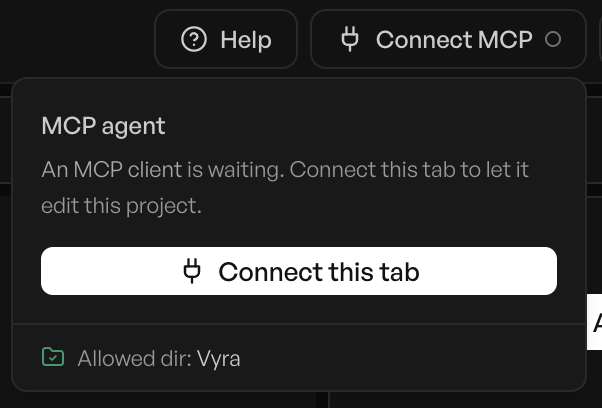
Connect this tab
Click the Connect MCP button in the editor's top bar to bind this specific browser tab to your agent. Editing-tool calls from the agent only land in the tab you've connected - if you have multiple tabs open, this is how you pick which one the agent drives. A green status dot means you're bound.
Start editing
Ask the agent to edit your video. It has access to 50+ tools covering the full editing workflow. Changes appear in the editor in real time.
What You Can Do
View & Search
- Browse project assets and references
- View timeline state, tracks, items, and timing
- Search footage by visual content, transcript, location, or date
- Capture screenshots of the canvas at any timestamp
- Search stock media (Pexels, Freesound)
Edit & Build
- Add video, audio, images to the timeline with trim control
- Add text overlays, shapes, and styled captions
- Edit properties - position, scale, opacity, volume, speed
- Move, split, slip, clone, and delete timeline items
- Set keyframes for animation
Effects & Compositing
- Apply and configure effects (color, stylize, distort)
- Create and animate masks (rectangle, ellipse, pen tool)
- AI-powered background removal
- Build motion graphics with React/Remotion code
Project & Assets
- Read project template and style configuration
- Add assets from your library or stock to a project
- Manage markers and consolidate tracks
Requirements
- A Vyra account (free or paid)
- A project open in the Vyra editor for timeline editing tools
- An MCP-compatible client (Claude Code, Claude Desktop, claude.ai, Codex, etc.)
Managing Sessions
You can view active MCP sessions and revoke access from Settings → External Agent in the Vyra app. When an agent is connected, a "MCP" tab appears alongside your chat panel showing tool activity in real time.
Stuck?
Troubleshooting
"No browser connected"
Multiple tabs / projects open
Authentication fails
claude mcp remove vyra then add it again.