Your First Project
A step-by-step walkthrough from signing up to your first export. Vyra's AI comes two ways - pick the path that matches your plan:
Create an account
Head to app.usevyra.com and sign up with an AI Starter or AI Pro plan. Both include Vyra AI - the editing agent built directly into the editor. There's nothing to install or configure.
Create a new project
From the home page, drop your footage onto the upload area - or click to browse your files. You can add videos, images, and audio.
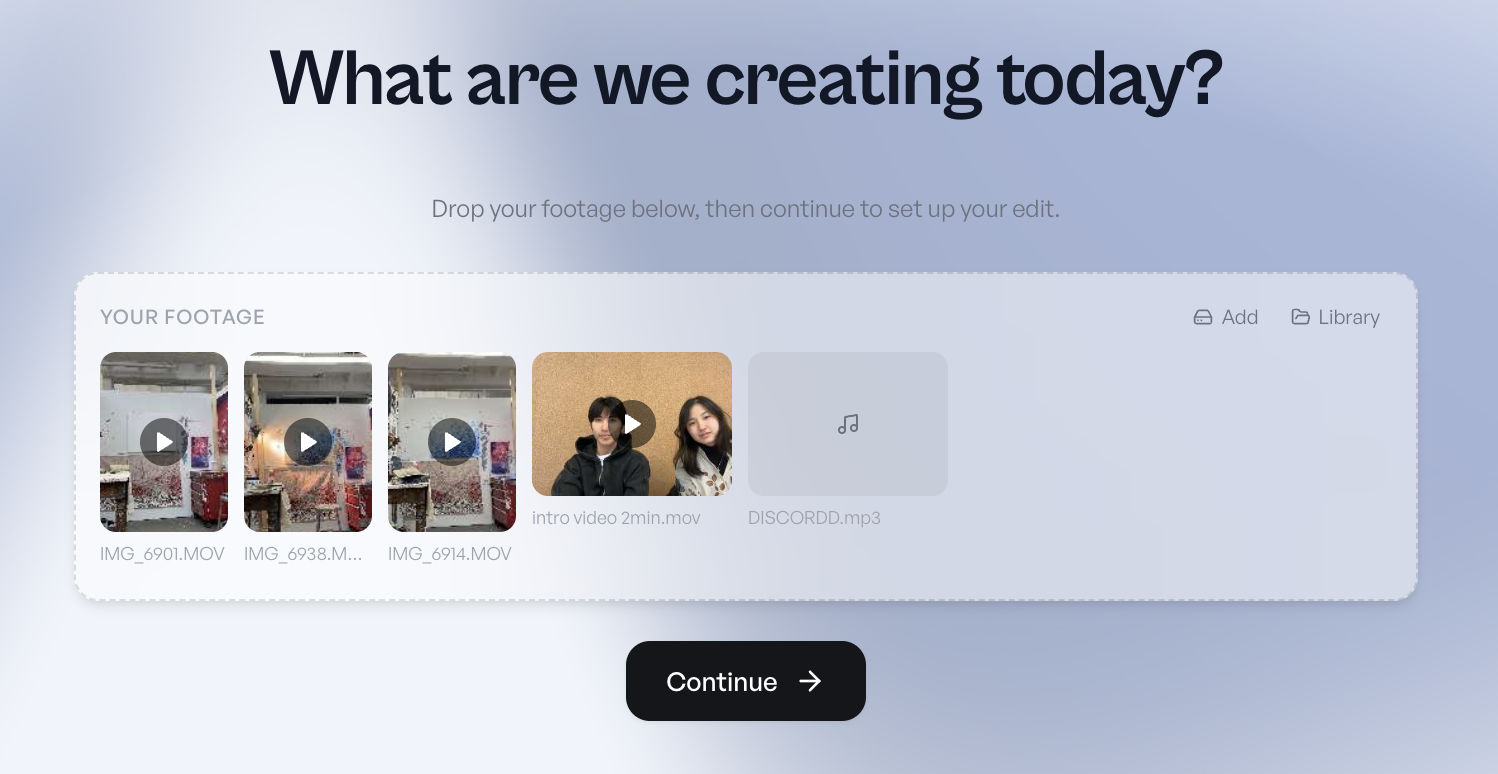
Tip: Files added directly to a project stay on your device (local mode). They're fast to start with, but only available on this machine. You can back them up to the cloud later from the cloud icon in the top bar.
Optionally pick a template (video structure like “Short Talking Head” or “Vlog”) and a style (colors and fonts). You can also upload a reference video to guide the AI's editing style.
Click Create Project. Your footage will start processing - this takes a minute or two depending on file sizes.
Wait for processing
While your footage processes, Vyra:
- Transcribes all speech (so the agent knows what was said)
- Analyzes every scene visually (so the agent knows what it's looking at)
- Generates thumbnails for your footage library
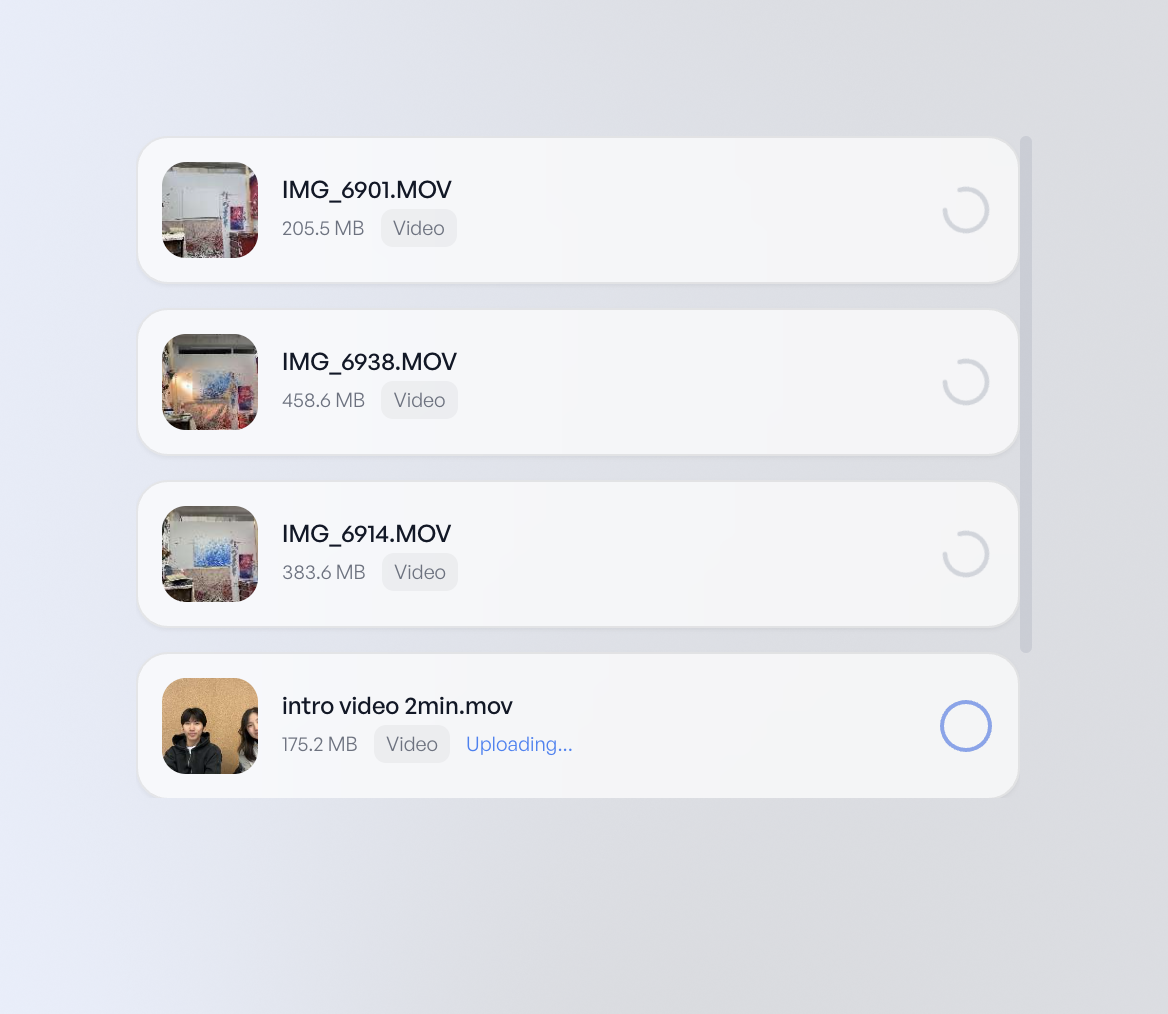
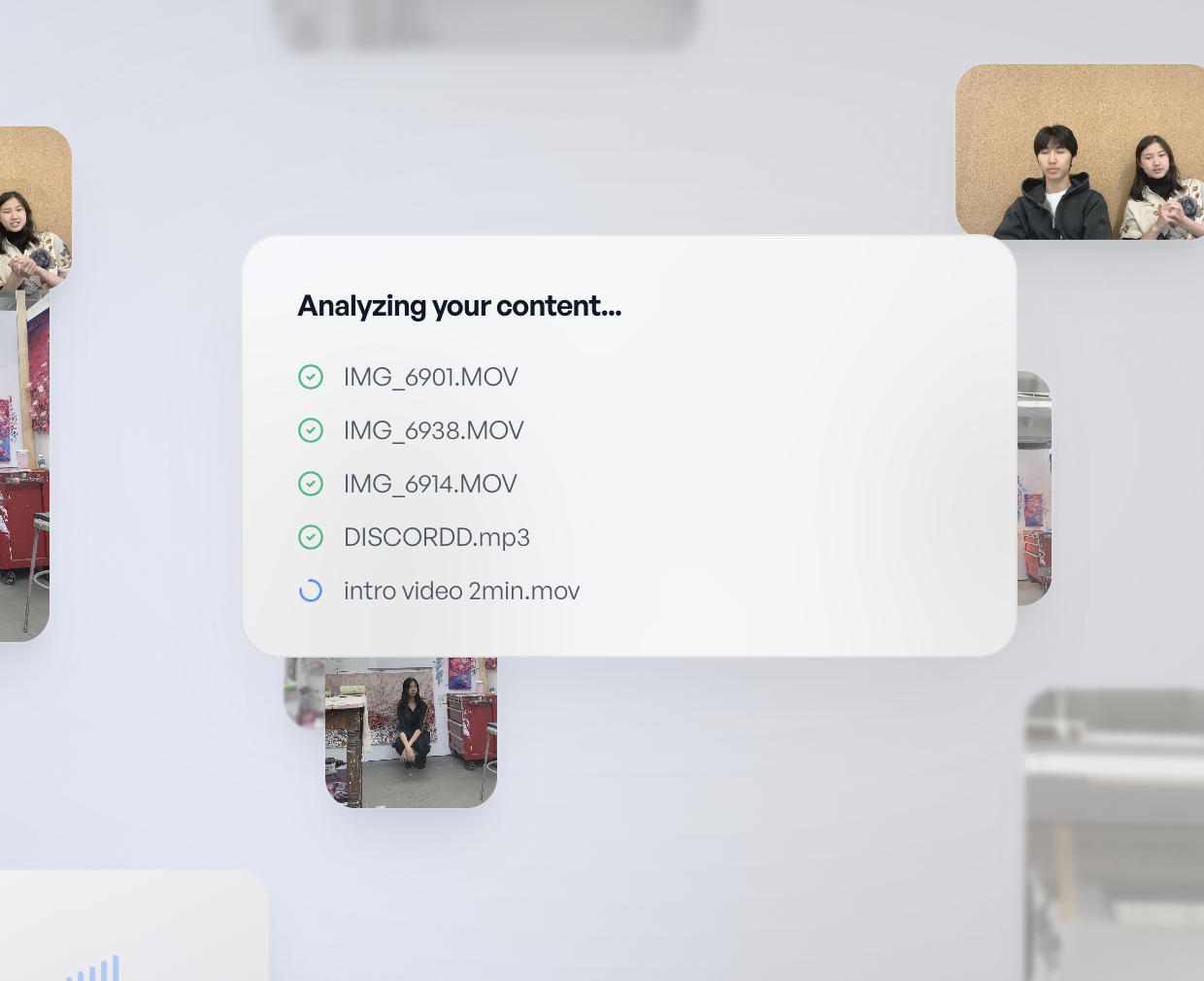
You'll see progress on each file. Once everything shows a green checkmark, the editor opens automatically.
Meet Vyra AI
The editor opens with the Vyra AI tab on the left - that's your agent, and it can already see every clip you uploaded, what's in them, and what was said. Just tell it what you're making:
You'll see the edit happen on the timeline in real time as the agent works. You can edit manually at any point - use whichever feels faster, and switch to the Footage tab any time to browse your clips yourself.
Get familiar with the editor
The editor has three main areas:
Left - Vyra AI & Footage
Your agent chat and your footage library, in tabs. Search footage by what's in it, drag clips onto the timeline, or just ask the agent.
Center - Canvas
The video preview. What you see here is what you'll export.
Right - Tools & Properties
Tool panels (text, effects, captions, etc.) when nothing is selected. Properties and effects when an item is selected on the timeline.
The timeline runs along the bottom - everything the agent builds lands there, and you can rearrange it by hand any time.
Export your video
Click the Export button in the top-right corner. Choose a preset or configure custom settings:
- Resolution - up to 1440p on AI Starter, 4K on AI Pro
- Format - MP4 (best compatibility) or WebM
- Quality - drag the bitrate slider between smaller file and higher quality
Exports happen entirely in your browser - keep the tab open until it finishes. Your video is saved to your downloads and also appears in the Exports section of the Assets page.
What's next
Now that you have a project under your belt:
- Try adding a reference video - the agent matches its pacing, style, and visual treatment
- Explore semantic search - search your footage by describing what's in it, not by filename
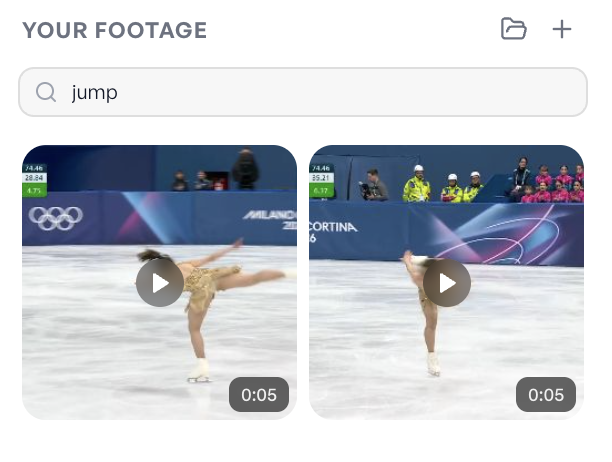
- Experiment with effects and masks - ask the agent for color grading, smart masks, and background removal
- Read the Getting Started guide for tips on communicating with the agent, what it's best at vs. what's faster to do yourself, and how to use motion graphics and reference videos